In Falsus Settings & Controls: Track Speed, Offset, Keys
Every In Falsus setting that matters: Track Speed, Audio Offset, keybinds and the default 6-key layout — plus the fix for hits that feel early or late.
Last updated:
In Falsus is controlled with one hand on the keyboard and one on the mouse: six keys cover the lower Floor lanes, while the mouse handles the aerial Field above them. It's a signature scheme with no real equivalent in other rhythm games — which is why "the controls feel awkward" was the most common early complaint. They stop feeling awkward once you understand what each input actually does and spend ten minutes in the settings menu.

The default keybinds
The six Floor lanes (2 side lanes + 4 middle lanes) map to:
| Lane | Default key |
|---|---|
| Side lane 1 | Left Shift |
| Middle lane 1 | A |
| Middle lane 2 | S |
| Middle lane 3 | D |
| Middle lane 4 | F |
| Side lane 2 | Space |
Every key can be rebound in the CONTROLS tab — and you probably should. The default layout forces your pinky onto LShift and thumb onto Space, which many players find cramped. Anything that lets your hand rest naturally is legal; a common rebind moves the whole row so your five fingers sit on adjacent keys.
3 Community-Tested Keybind Schemes
If the default pinky-on-Shift and thumb-on-Space feels strained, try one of these three community setups:
Scheme 1: Ergonomic Home Row (Recommended for Beginners & Intermediates)
Removes the unnatural reach between pinky and thumb, letting five fingers relax naturally on standard typing keys:
| Lane | Key | Assigned Finger | Advantage |
|---|---|---|---|
| Side 1 | A | Pinky | Eliminates heavy Shift key actuation force |
| Middle 1 | S | Ring | Matches standard 4K muscle memory |
| Middle 2 | D | Middle | Fast agile pivot on center streams |
| Middle 3 | F | Index | Highest dexterity finger handles complex rhythms |
| Middle 4 | G | Index slide / Thumb | Smooth adjacent transition |
| Side 2 | Space or V / B | Thumb | Natural thumb curl with zero wrist fatigue |
Scheme 2: Fast Trill & Chord Separation (Advanced · ULT & FBD)
Prevents finger crowding during high-speed streams and multi-lane chords:
| Lane | Key | Assigned Finger | Advantage |
|---|---|---|---|
| Side 1 | Left Ctrl or CapsLock | Pinky palm anchor | Locks long Hold notes steadily |
| Middle 1–4 | Z - X - C - V | Lower row four fingers | Shallower finger curve with snappier rebound |
| Side 2 | Space | Thumb edge | Independent thumb timing from chord presses |
Scheme 3: Anti-Ghosting Staggered Layout (Office & Membrane Keyboards)
Cheap membrane keyboards lacking full N-Key Rollover (NKRO) can drop inputs when multiple adjacent keys are struck simultaneously. This layout separates the matrix lines:
- Layout: Side 1 Left Shift | Middle 1 W | Middle 2 E | Middle 3 D | Middle 4 F | Side 2 Space
- Advantage: Staggering across two keyboard rows bypasses shared membrane traces, preventing dropped hits on chords.
How to Rebind Keys in Game (Step-by-Step)
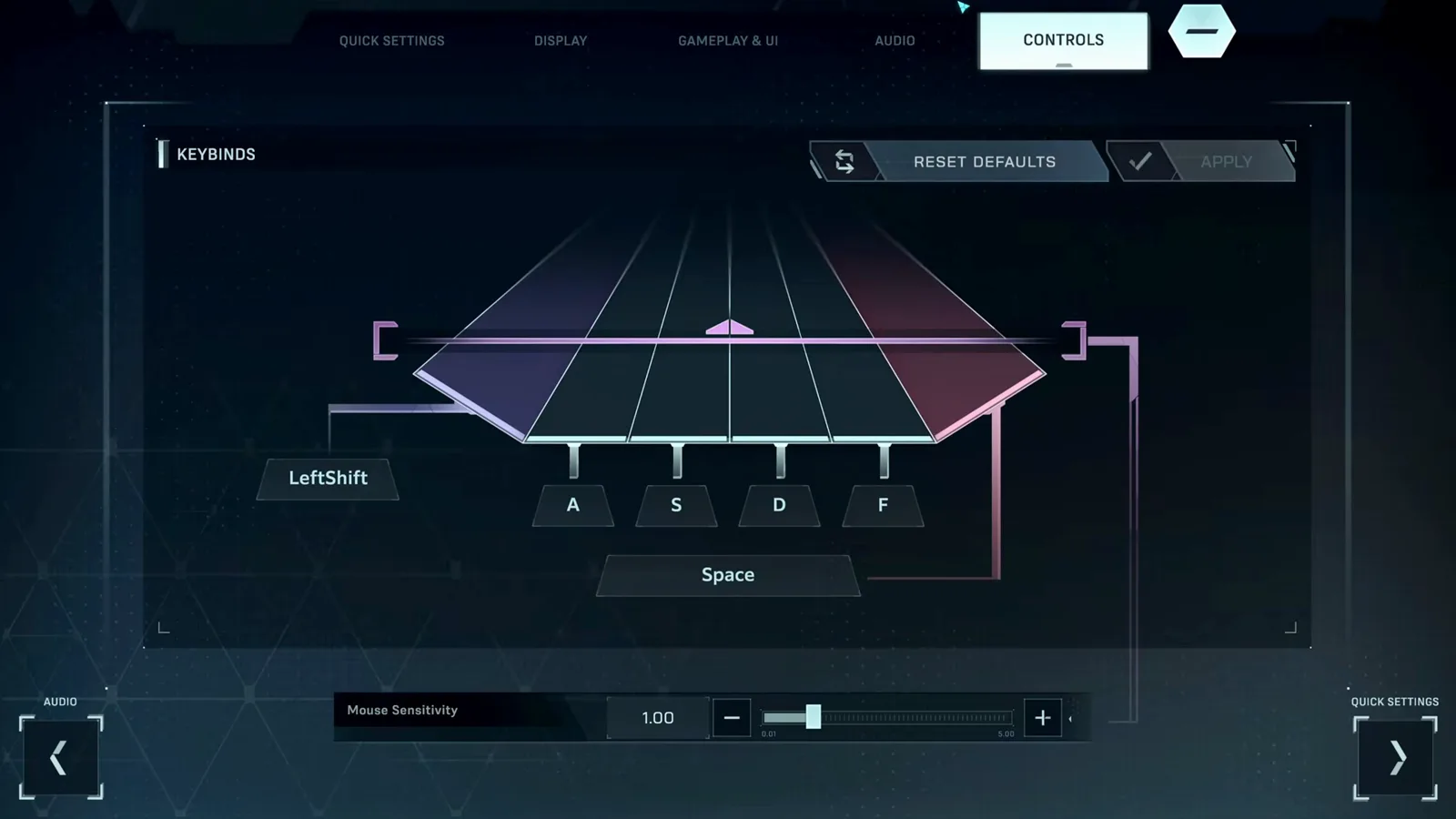
- Open OPTIONS from the title screen or pause menu.
- Click the CONTROLS tab along the top.
- Click the key box corresponding to the lane you want to remap (it highlights waiting for input).
- Tap the desired keyboard key (updates immediately).
- Click BACK at bottom-left to save, or use RESET TO DEFAULT if you ever need to restore the factory layout.
Track Speed: how fast notes come at you
Track Speed is the single most personal setting in In Falsus. It lives under QUICK SETTINGS as a slider from 0.8 to 10, and it controls how quickly notes travel down the field — nothing else. Raising it does not make the chart harder in terms of inputs; it spreads the same notes over more screen space so dense sections read as separate hits instead of a wall.
There is no official recommended value — the slider ships at a low default and you raise it until the chart reads comfortably. Players commonly settle well above the default on ULT and FBD charts (an in-run HUD may show values like 6.0); what matters is that you can tell apart two notes in the densest section of the songs you play. Change it in small steps and give each value a full song before judging it.
Audio Offset: when hits feel early or late
If every judgement lands NEAR-early or NEAR-late no matter how you adjust, your audio latency is off. The Audio Offset value sits right under Track Speed in QUICK SETTINGS, measured in milliseconds: positive values shift judgement later, negative values earlier, and 0 is the neutral starting point the game suggests.
Change it in 10–20 ms steps while replaying the same easy chart, and stop as soon as EXACTs feel centered instead of rushed or dragged. If you want a starting estimate instead of trial and error, the audio offset calculator computes a value from your audio latency and refresh rate. Headphone Bluetooth latency, some wireless headsets' processing modes and high VSync input lag are the usual causes of a large offset — the display fixes page covers the display side of that chain.
Every note type and its input
- Tap — press the matching lane key once. On FBD difficulty, wide taps span several middle lanes; hitting any one of the overlapped keys counts.
- Hold — press and hold the lane key. There is no release timing in In Falsus, so never worry about letting go early. Wide holds (FBD only) can be transferred from one key to another mid-hold.
- Field — the mouse note. Keep your cursor inside the purple region as it moves. If the cursor drifts out, the field turns red — and if you stay out too long, the field locks and briefly refuses input. This lockout is what kills most new players.
- Flick — flick the mouse left for yellow notes, right for green notes. Your movement only needs to overlap the note's horizontal span, not cover its full length — small flicks are enough.
When side-lane notes are hard to see: side-lane taps share the same color as the side track itself, and several players have reported losing them against the lane at launch — there is no note-color or accessibility option to change this as of v1.0.3. What helps: watch for the colored light pillar that rises diagonally out of a side note as it approaches, and keep the outer edges of the field in your peripheral vision instead of staring at the center lanes.
Lanes per difficulty
- MIN (4K) — only 4 keys are active and your fingers never move. Static placement, pure rhythm reading. Start here.
- EVO (5K) — 5 keys; the set of active middle lanes shifts mid-song, so your three middle fingers slide left or right when lanes change.
- ULT (6K) — all six lanes, full layout.
- FBD (6K + wide notes) — all lanes plus wide taps/holds exclusive to this difficulty.
How to get better (in order)
- Rebind first. Ten minutes in the keybind menu is worth more than ten hours of fighting LShift.
- Set Track Speed and Audio Offset next. Both live in QUICK SETTINGS, both take effect instantly, and both remove excuses before you practice (see the sections above).
- Stay on MIN until Field notes feel free. The keyboard side of MIN is trivial by design — use it to train your mouse hand without pressure.
- Make small, continuous mouse movements. Big sweeps overshoot the purple region and trigger the red lockout. Think "tracking", not "swiping".
- Learn the flick directions cold. Yellow = left, green = right must become reflex before EVO, where they mix with lane shifts.
- Move up one difficulty at a time. EVO's shifting lanes are the real skill gate — going MIN → ULT directly teaches bad habits.
The full scoring system (EXACT/NEAR windows, Miss HP, grades) is covered in the rhythm tips guide. For hand posture on the keyboard side, see the hand placement guide; the screenshot walkthrough covers every other screen. New players should read beginner tips first. If your screen is black before you even reach the tutorial, fix that first: black screen fixes. Planning a Blueprint? Try the Iota Solver.
The settings menu, tab by tab
Everything above lives under OPTIONS on the title or pause menu — five tabs, shown here as they appear in-game (frames from a full playthrough; the menu carried over to release):

QUICK SETTINGS — Track Speed and Audio Offset, the two sliders that define how the game feels. Set both before grinding charts.
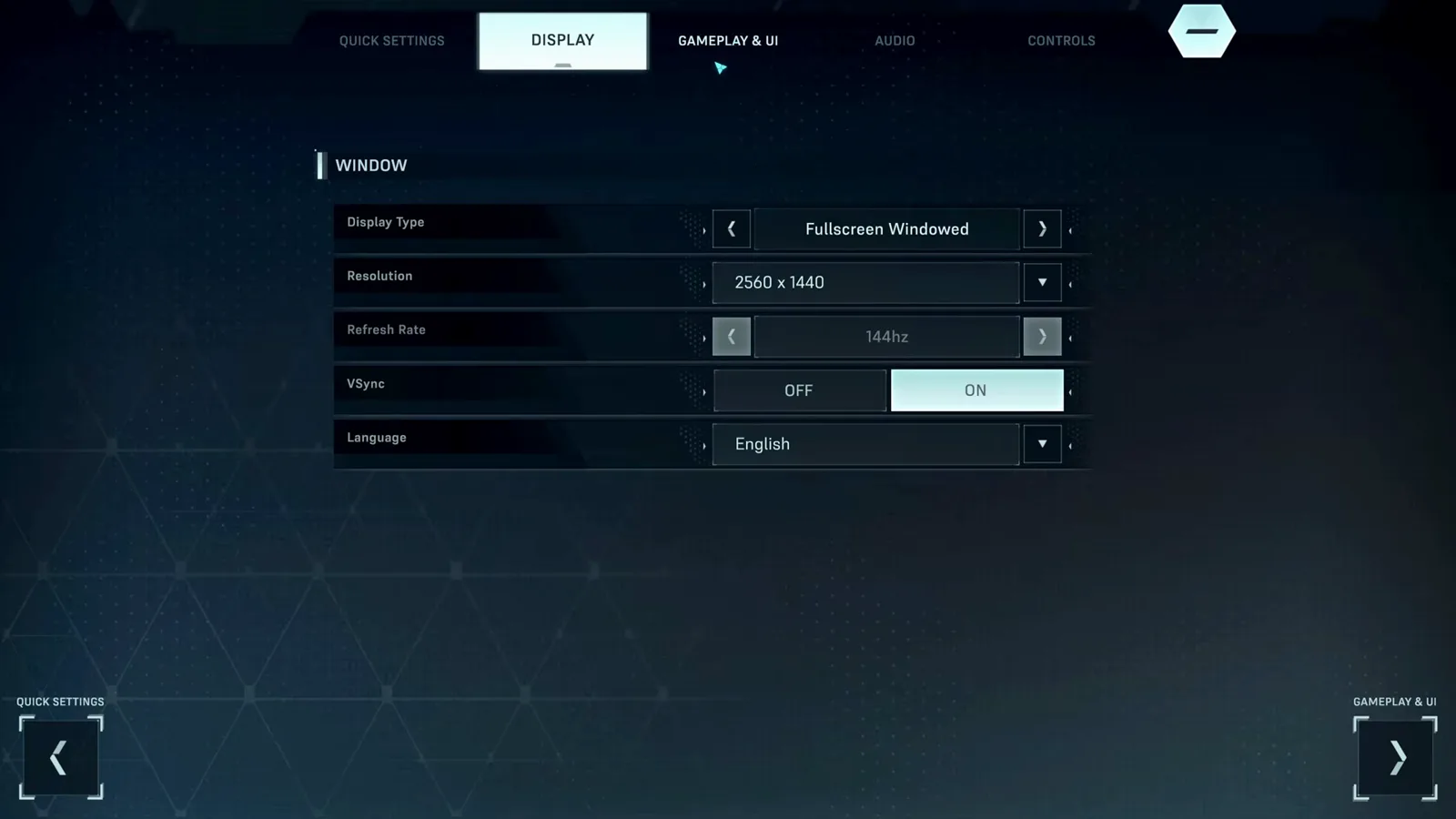
DISPLAY — display type, resolution, refresh rate, VSync and game language.
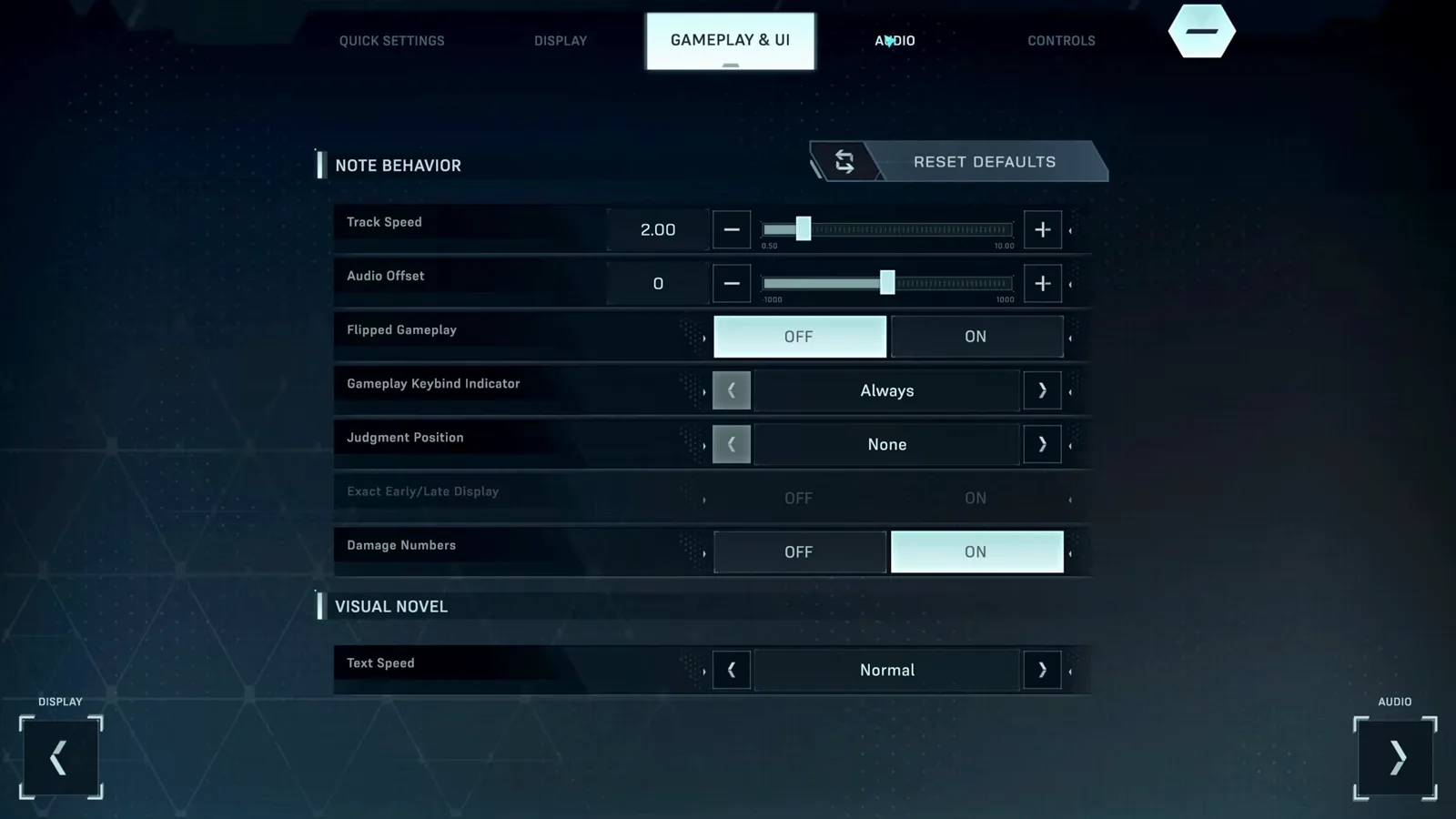
GAMEPLAY & UI — note behavior toggles, judgment line position, early/late display and the visual novel text speed (the closest thing to a story fast-forward the game ships — see skipping the story).
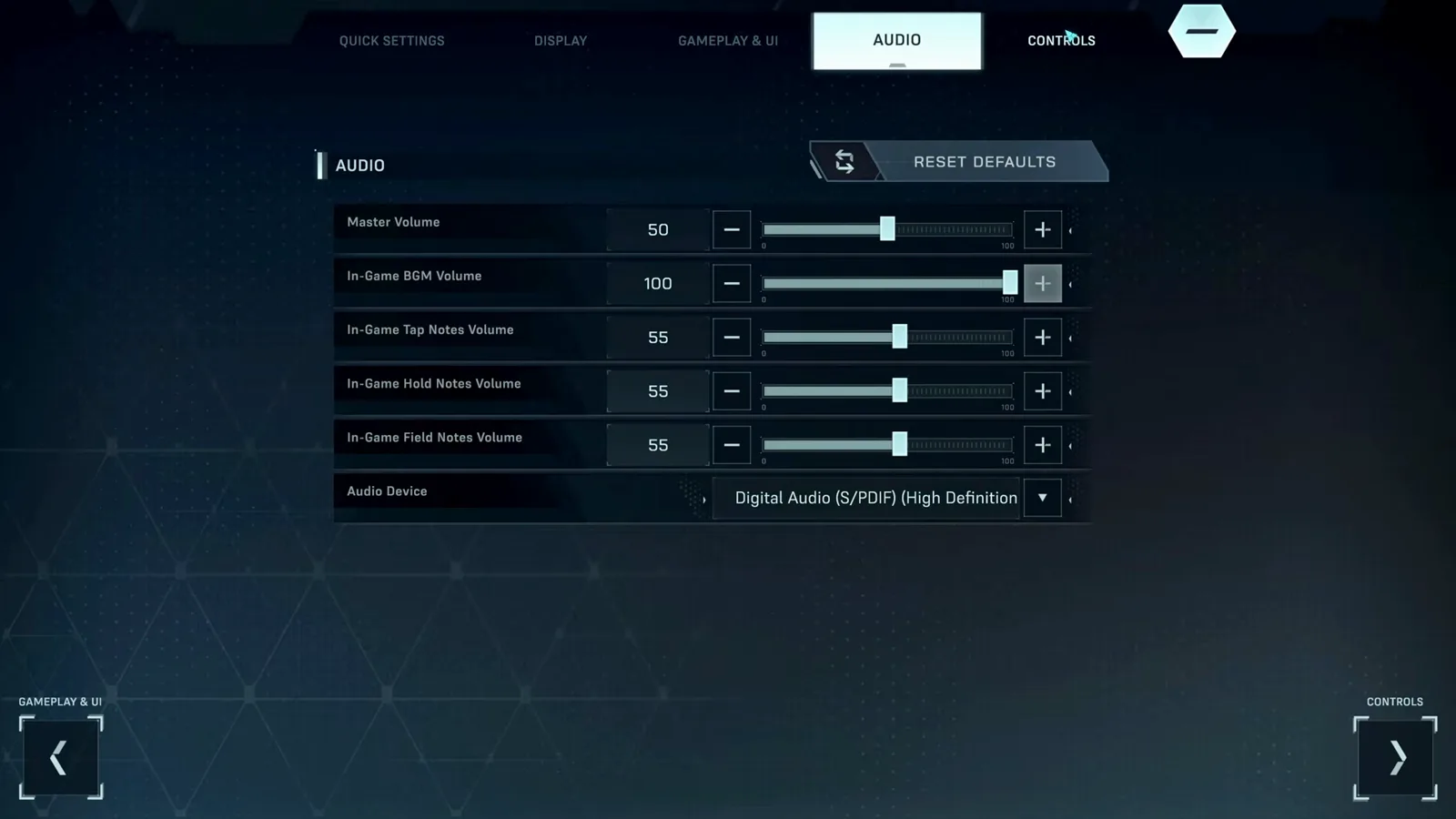
AUDIO — per-note-type volumes so you can hear taps over the music.
CONTROLS — the keybind grid mirrors the play field; mouse sensitivity tunes the Field/Flick hand.
Screenshots are frames from a full demo playthrough by justonegamr.
Two latency details most players miss
Run fullscreen on the monitor your mouse lives on. In Falsus reads your cursor position continuously for FIELD and FLICK notes. When the fullscreen window sits on a different screen than the pointer, the capture and compositor detours can add input distance on top of ordinary display latency — drag the pointer to the game's screen, or make that screen your primary display.
Audio Offset is per output device. Each device — headphones, speakers, a docked setup — needs its own calibration. Switch devices, then recalibrate; the tap-based offset calculator gives a fair starting value for each new setup, and the desync fix guide covers the full audio path.
FAQ
What Track Speed should I use in In Falsus? Whatever lets you read the densest section of your current chart. The slider runs 0.8–10, starts low, and has no official recommended value — raise it in small steps until walls of notes separate into individual hits, then stop changing it so your timing stabilizes.
Why do all my hits feel early or late? That's audio latency, not your timing. Adjust Audio Offset in QUICK SETTINGS by 10–20 ms at a time on an easy chart until EXACTs feel centered, or compute a starting value with the offset calculator.
Can I play In Falsus with a controller? No — there is no controller support, and Field/Flick notes are designed around continuous mouse movement. Details in controller support explained.
Can I change the keybinds? Yes, all six Floor keys are rebindable in the CONTROLS tab. The mouse side is fixed.
In Falsus © lowiro. This is an unofficial community guide.