Guide · Walkthrough
Demo Walkthrough, Screen by Screen
This walkthrough follows one full run of the In Falsus demo on PC, from the title screen to the results card, with a screenshot for every major screen. The demo itself was removed from Steam at launch on 2026-09-09, so use this page to hunt down a setting or recognize a screen — it stays up as an interface and settings reference.
Sources
- In Falsus - Full Demo Gameplay [PC] — justonegamr
- [In Falsus Demo] Tutorial | Albedo by void (Mournfinale) — :paradox
Screenshots are frames from the linked playthrough and tutorial videos, credited above. Menu names and values are shown as they appear in the demo build.
- 1
Boot into the demo title screen
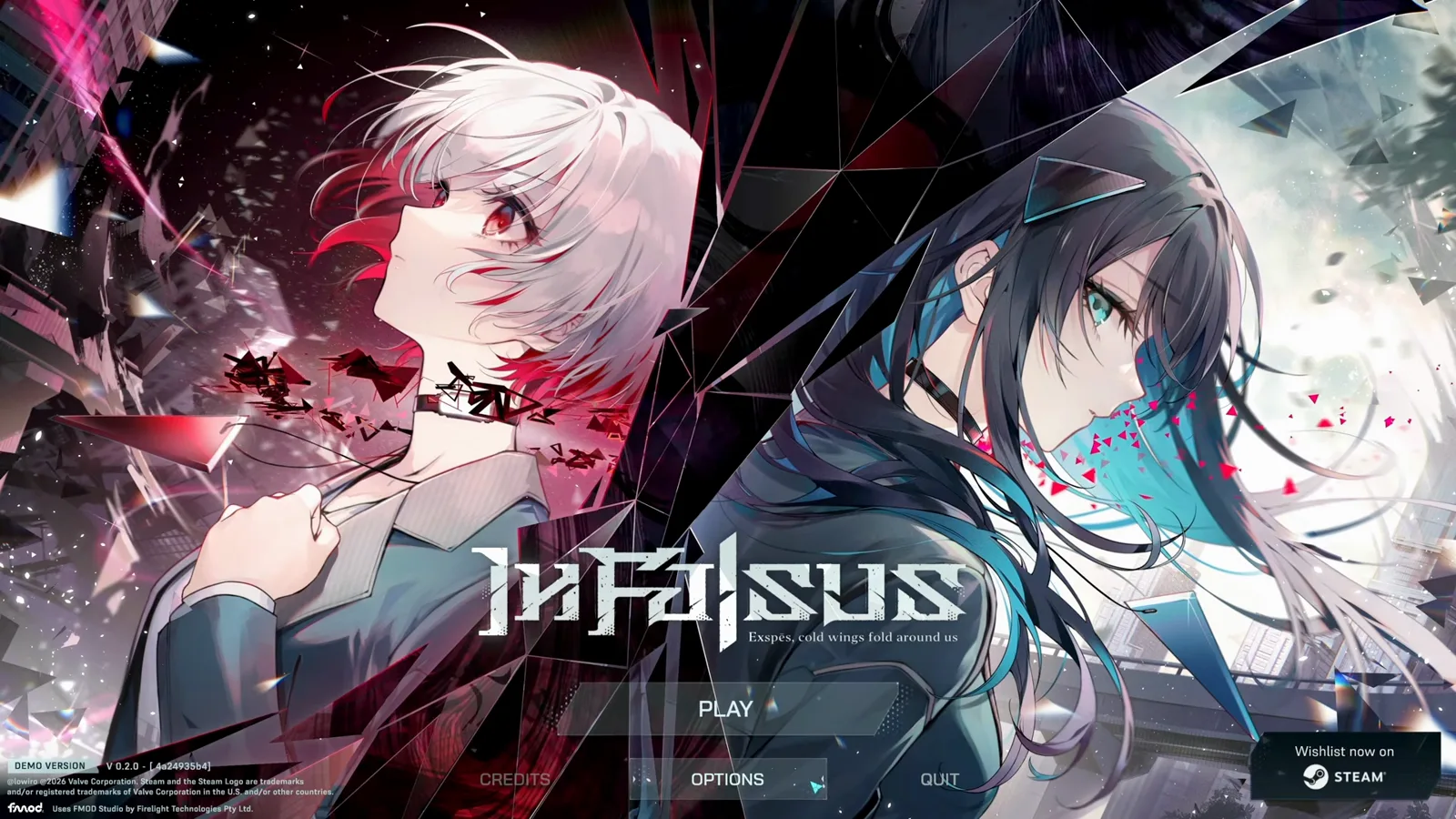
The demo opens on key art of the two heroines with the tagline "Exspes, cold wings fold around us". Press any key, then choose PLAY, OPTIONS, CREDITS or QUIT. The footer shows the demo build number and a Steam wishlist notice.
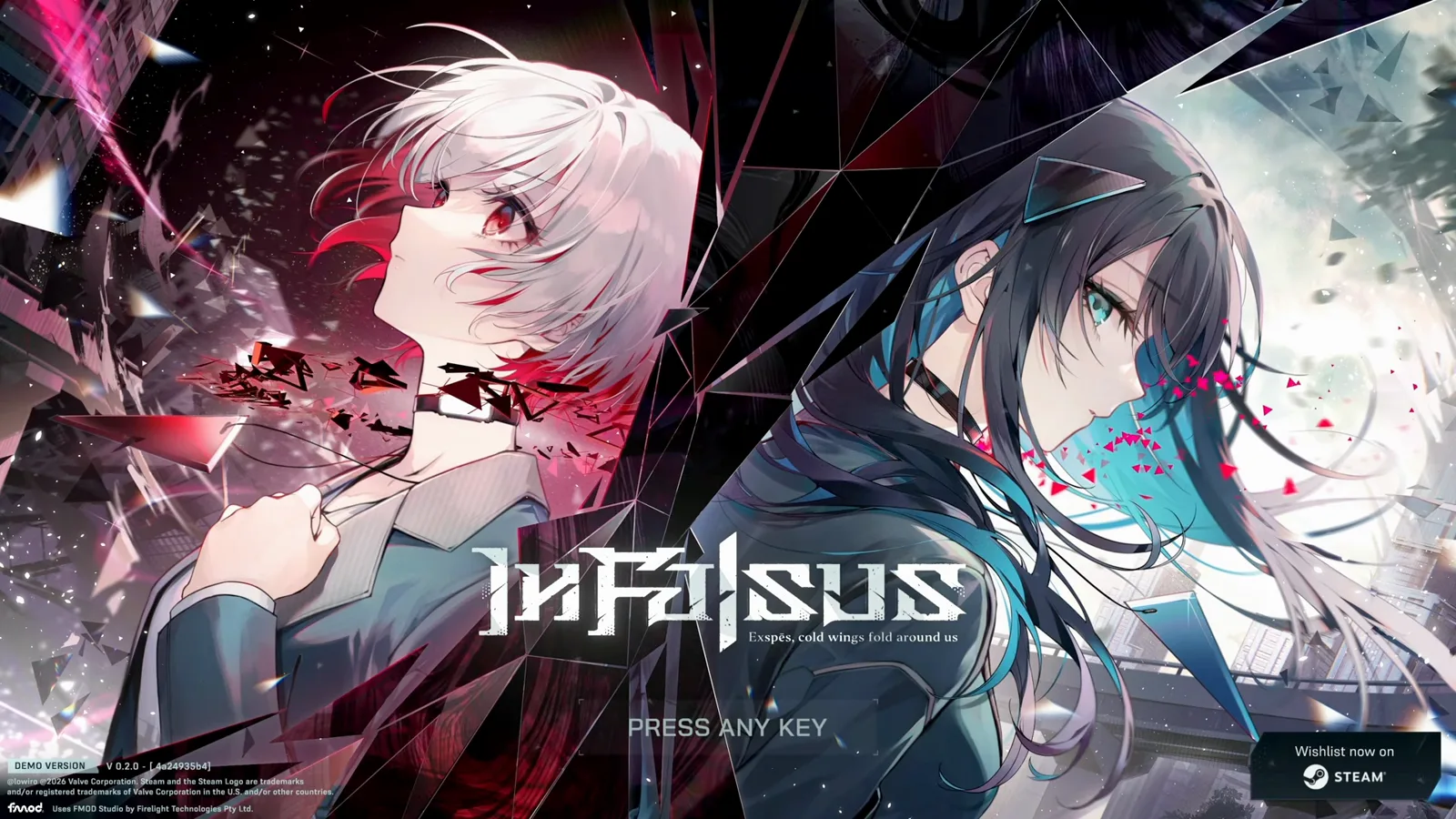
The demo splash screen before the main menu.Watch source clip - 2
Set Track Speed and Audio Offset first
Under OPTIONS, the QUICK SETTINGS tab opens with the two settings that shape rhythm feel: Track Speed (0.8–10.0; the recorded run uses 2.00) controls how fast notes approach, and Audio Offset (−1000 to 1000 ms, recommended 0) shifts judgment timing when hits feel off. The tooltip even says to raise the offset if you hit notes late.
The two sliders that change how the game feels.Watch source clip - 3
Check Display: resolution, refresh rate, VSync
The DISPLAY tab lists Display Type (Fullscreen / Windowed), Resolution, Refresh Rate, VSync and Language. Match the refresh rate to your monitor — a 144 Hz panel running at a lower rate makes timing feel inconsistent.
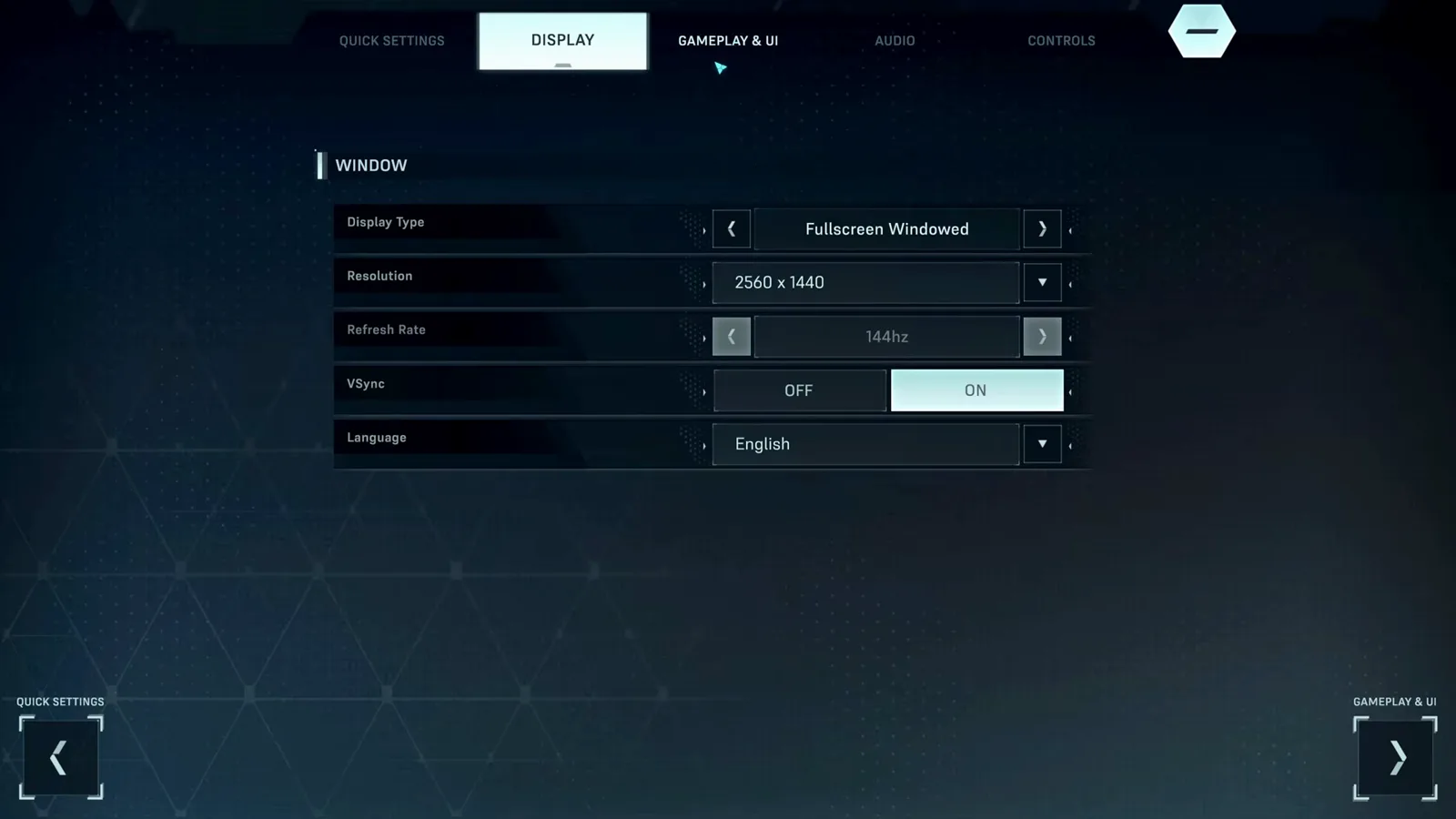
Display options including the language selector.Watch source clip - 4
Tune note behavior in Gameplay & UI
GAMEPLAY & UI collects the preference toggles: Flipped Gameplay, Gameplay Keybind Indicator (Always/None), Judgment Position, Early/Late Display and Damage Numbers, plus Visual Novel Text Speed for the story segments.
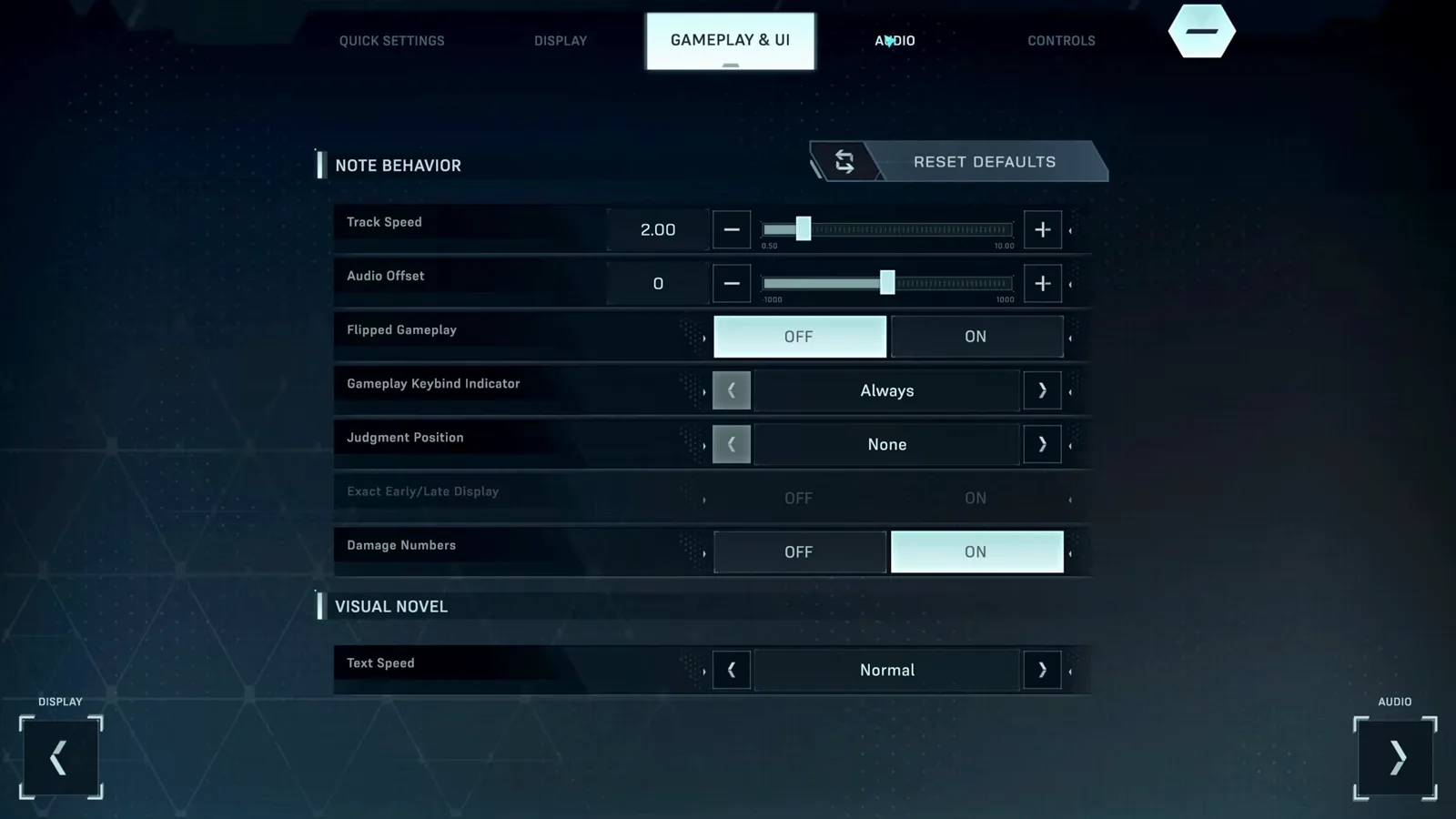
Note behavior and visual novel preferences.Watch source clip - 5
Balance volumes per note type
The AUDIO tab goes beyond a master slider: In-Game BGM, Tap Notes, Hold Notes and Field Notes each get their own volume, next to the output device picker. If the music drowns out the tap clicks, raise the Tap Notes volume instead of the master.
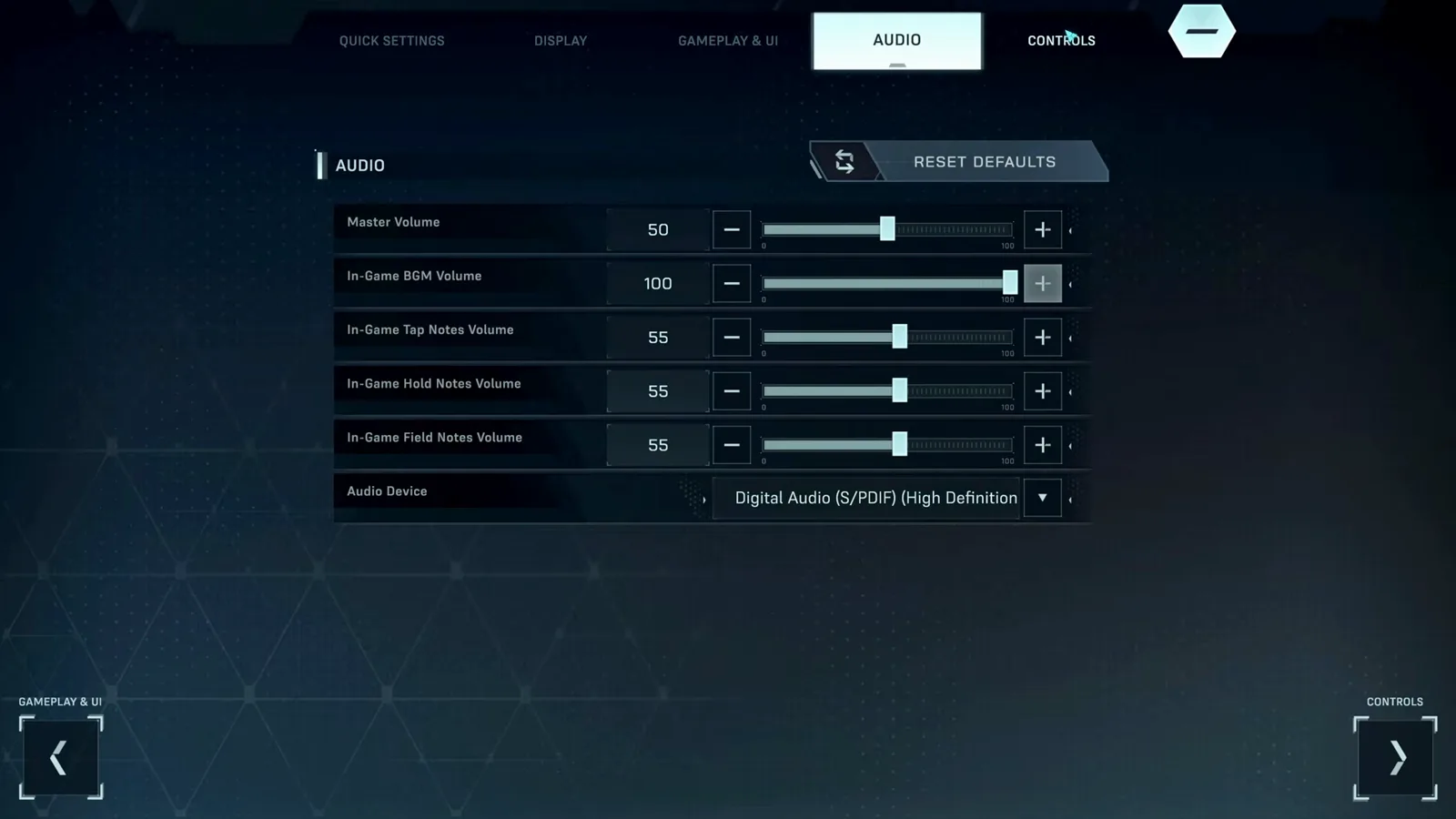
Per-note-type volume sliders.Watch source clip - 6
Review keybinds and mouse sensitivity
CONTROLS shows the KEYBINDS grid — Left Shift, A, S, D, F, Space — drawn as a miniature of the play field, plus Mouse Sensitivity (0.01–5.00) for the upper cursor. Click a binding to remap it; RESET DEFAULTS and APPLY manage your changes.
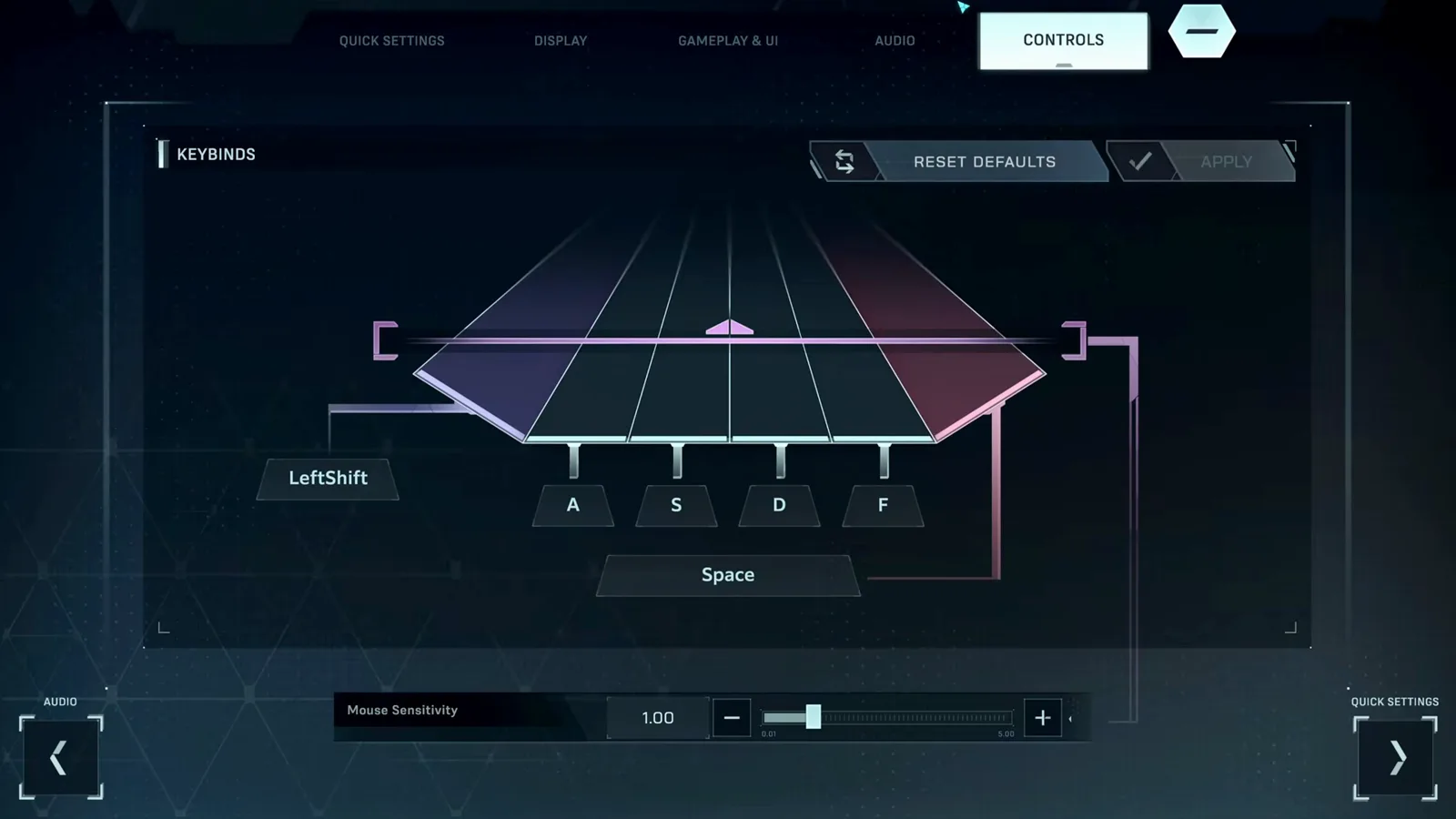
The keybind grid mirrors the play field.Watch source clip - 7
Let the in-game tutorial run once
The demo tutorial is a 13-step sequence played on Albedo (EVO). It teaches the upper cursor and flick notes first, then the keyboard's Tap and Hold notes. You can replay it any time from the hub's REPLAY TUTORIAL button.
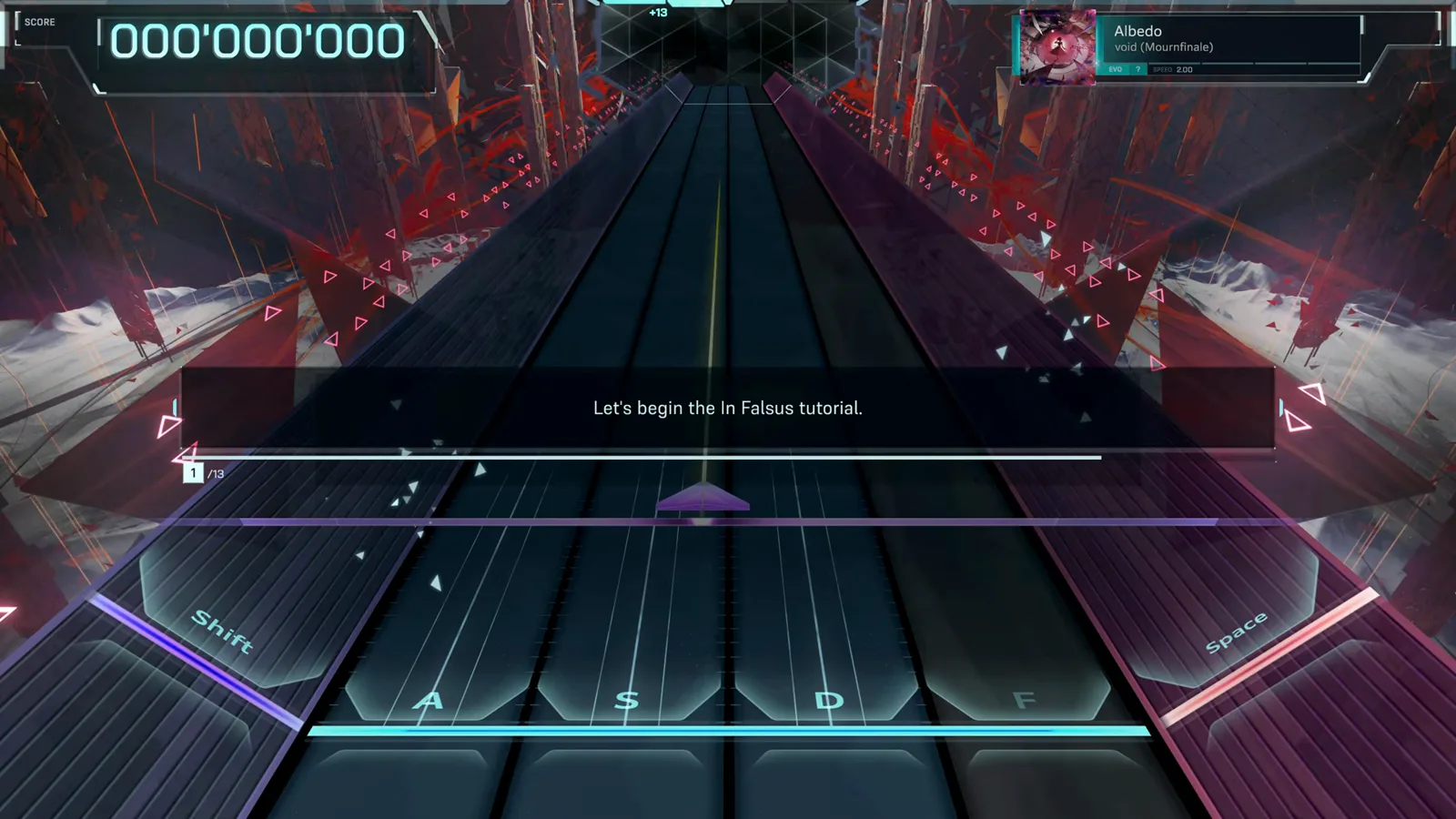
Step 1 of 13 in the built-in tutorial.Watch source clip - 8
Learn the split: cursor above, keys below
Midway through, the tutorial hands control to the keyboard: notes fall down lanes and must be struck with the displayed keys when they touch the bottom line. This two-layer split — mouse above, keyboard below — is the game's core gimmick.
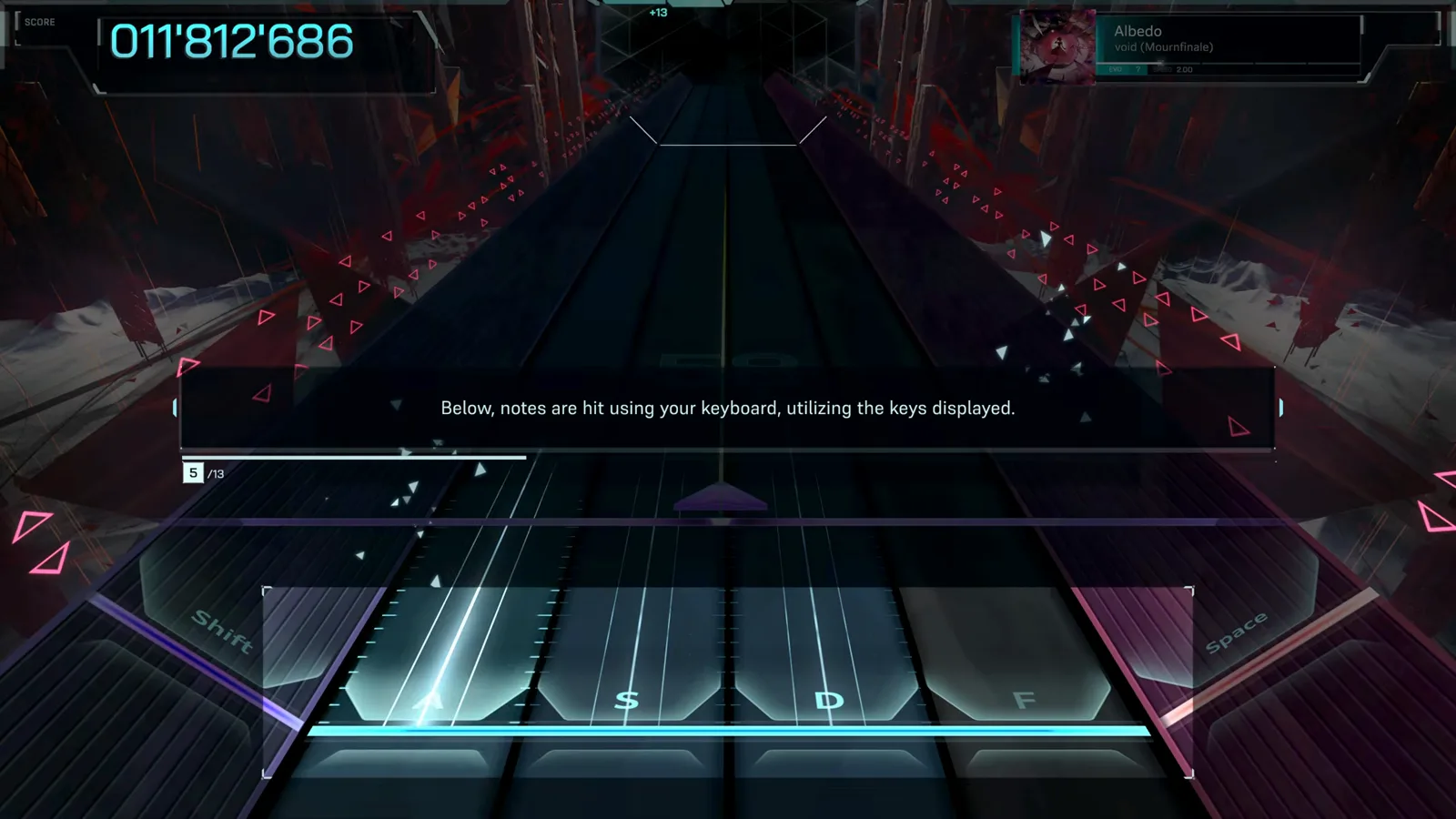
The tutorial introduces the keyboard lanes.Watch source clip - 9
Finish with the combined test
Step 13 asks you to prove everything at once in a short combined run on the same song. Failing is fine — the real dive starts right after.
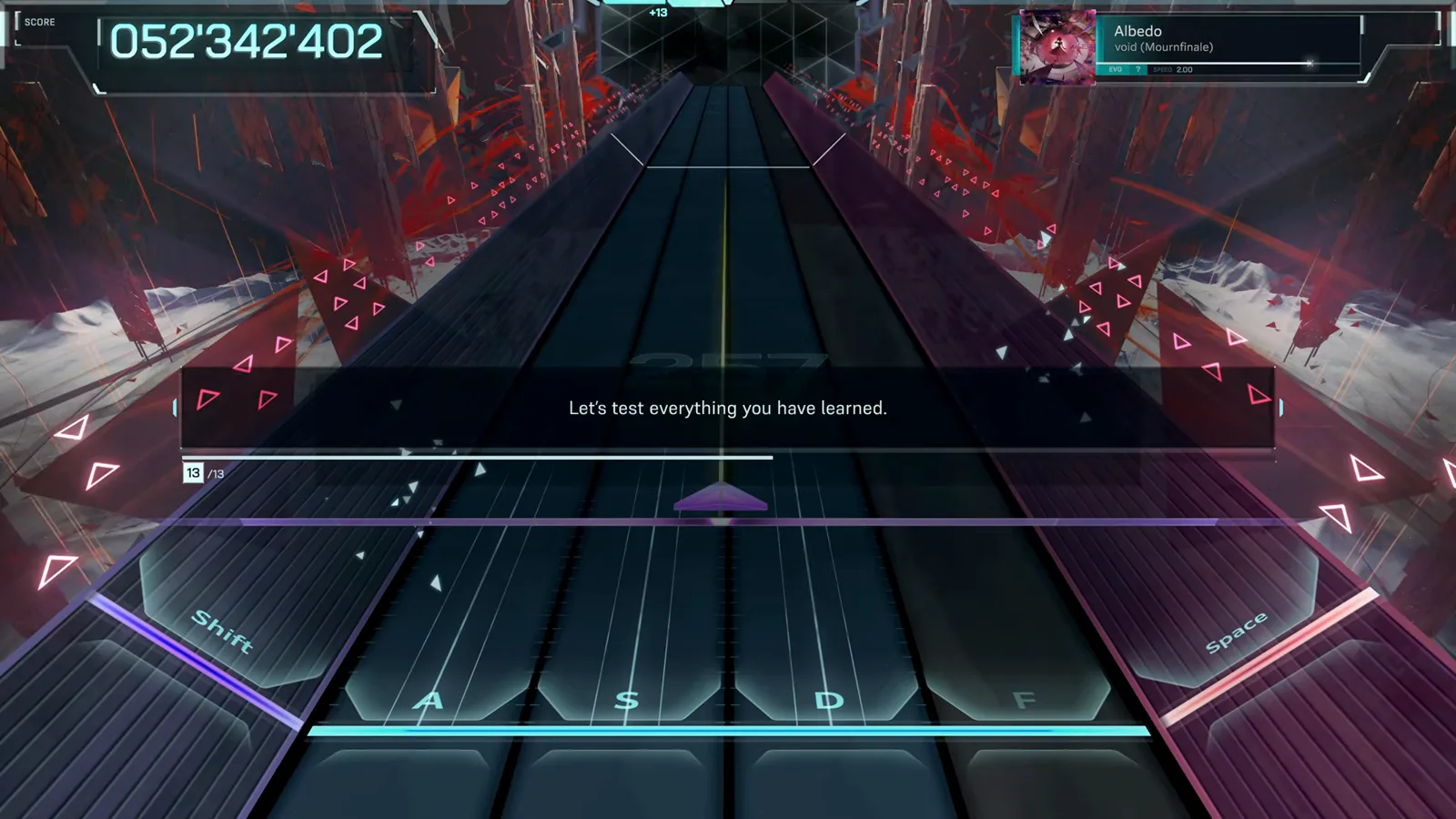
The final tutorial challenge.Watch source clip - 10
Story scenes play between dives
Between songs, the demo runs visual-novel style scenarios with glitched, chromatic-aberration art. Dialogue sits in text boxes with rewind, advance, fast-forward and log controls along the top.
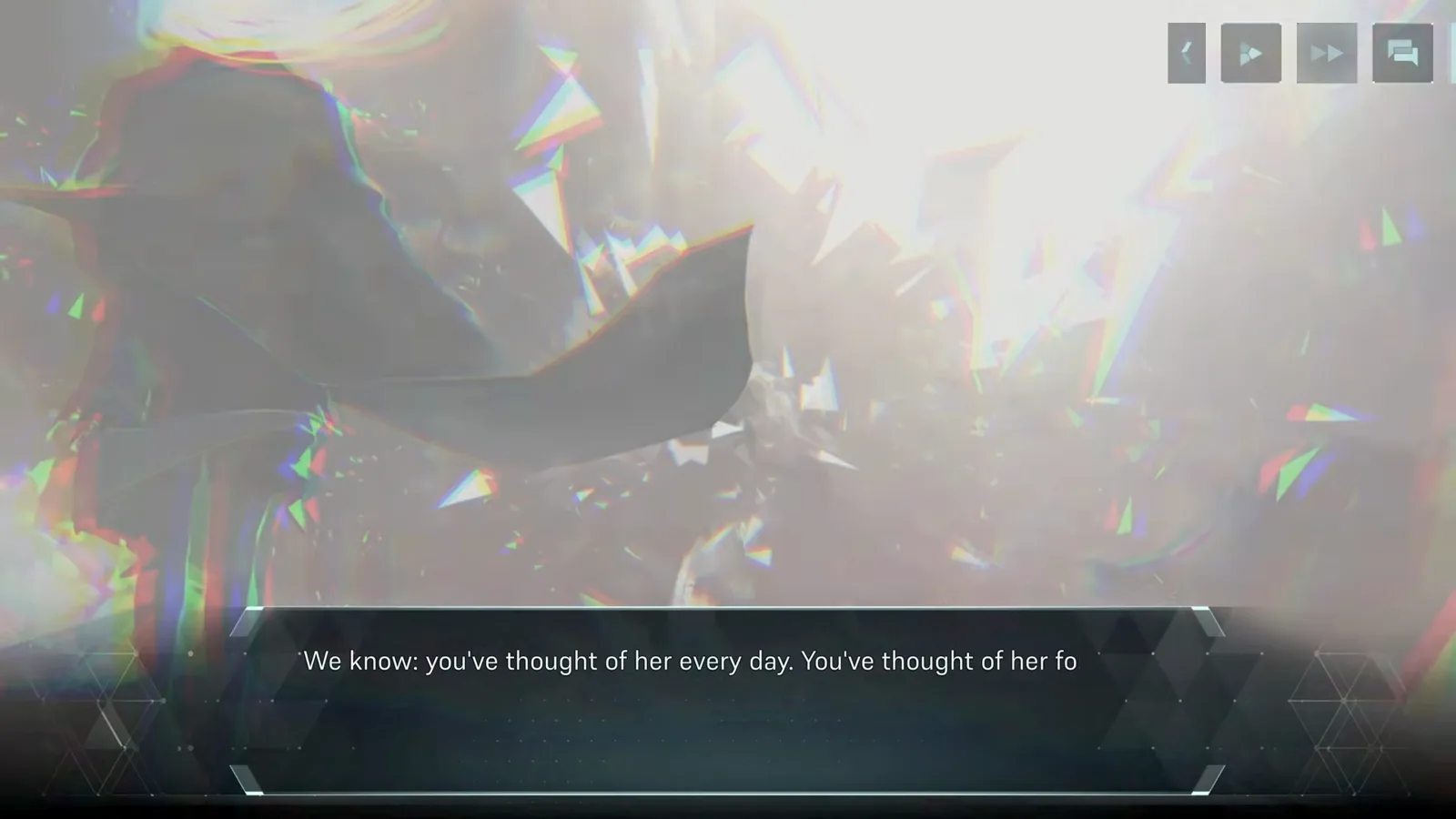
The opening scenario cutscene.Watch source clip - 11
Characters drive the scenario
Lines are tagged with speaker tabs such as "Her"; the scenario framing is where the game's story hooks live, so resist skipping everything on a first run.
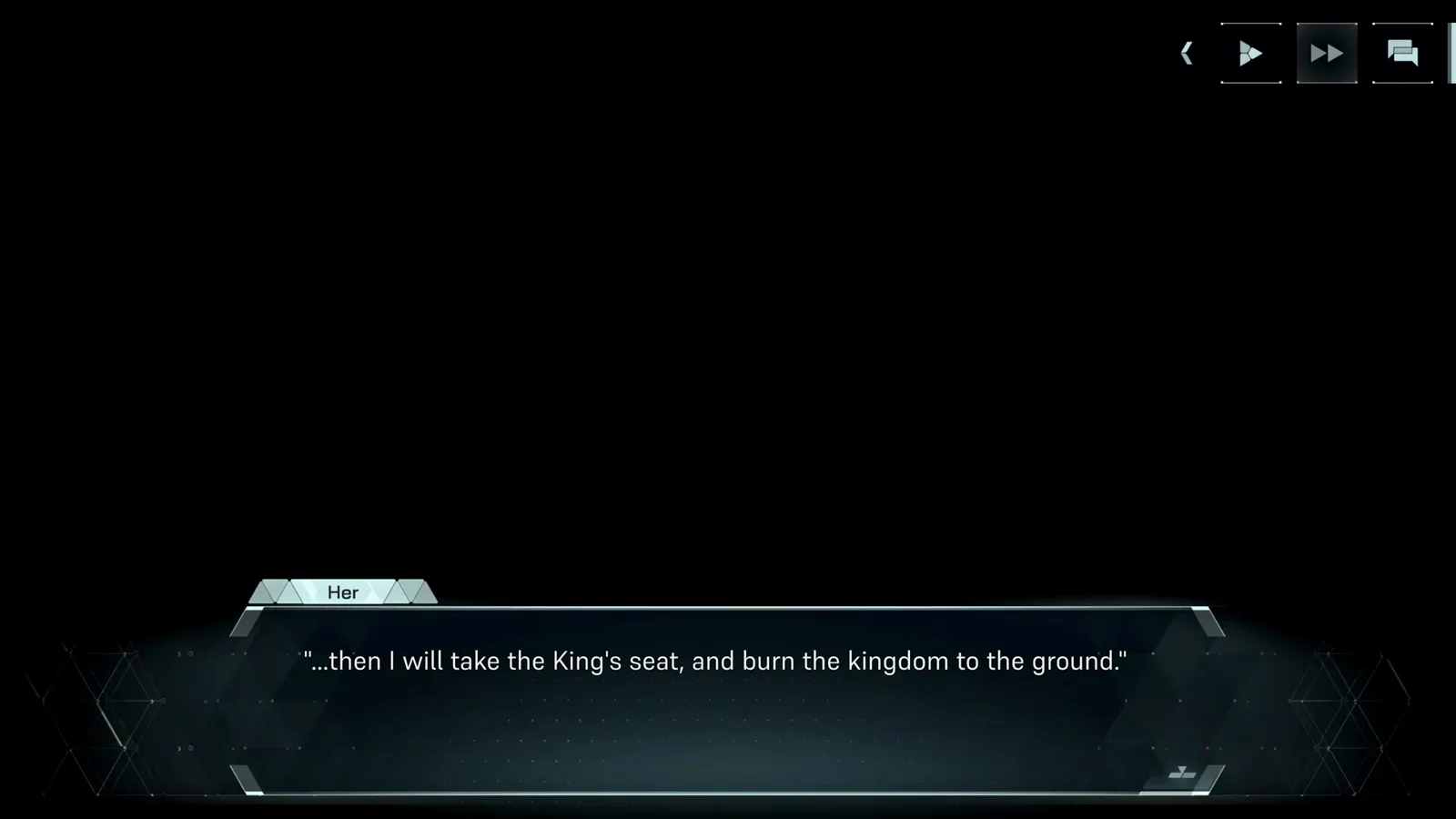
A story line from the demo scenario.Watch source clip - 12
Your first full song
In play, the note highway floats over a shifting 3D backdrop. The HUD keeps score top-left, song and difficulty top-right, and the Shift/Space side-lane indicators at the keybed.
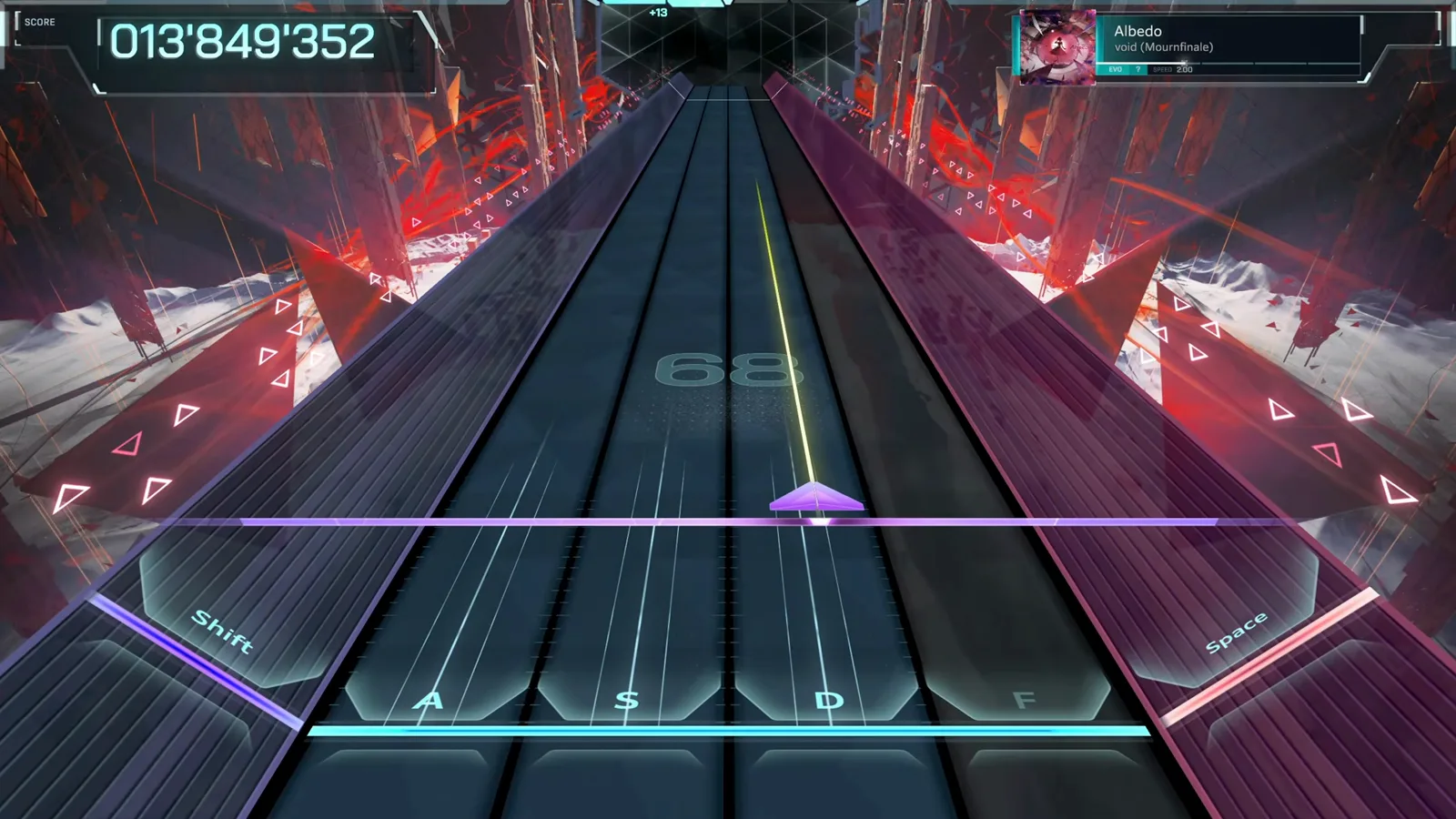
Albedo running on EVO difficulty.Watch source clip - 13
The hub: pick a theme character
The hub is your base between dives. Selecting a character (Nia, Mei, Ayame, Iris, Story) reskins the hub — the game calls this a hub theme customization — while MUSIC PLAY opens song select and SCENARIO replays story segments.
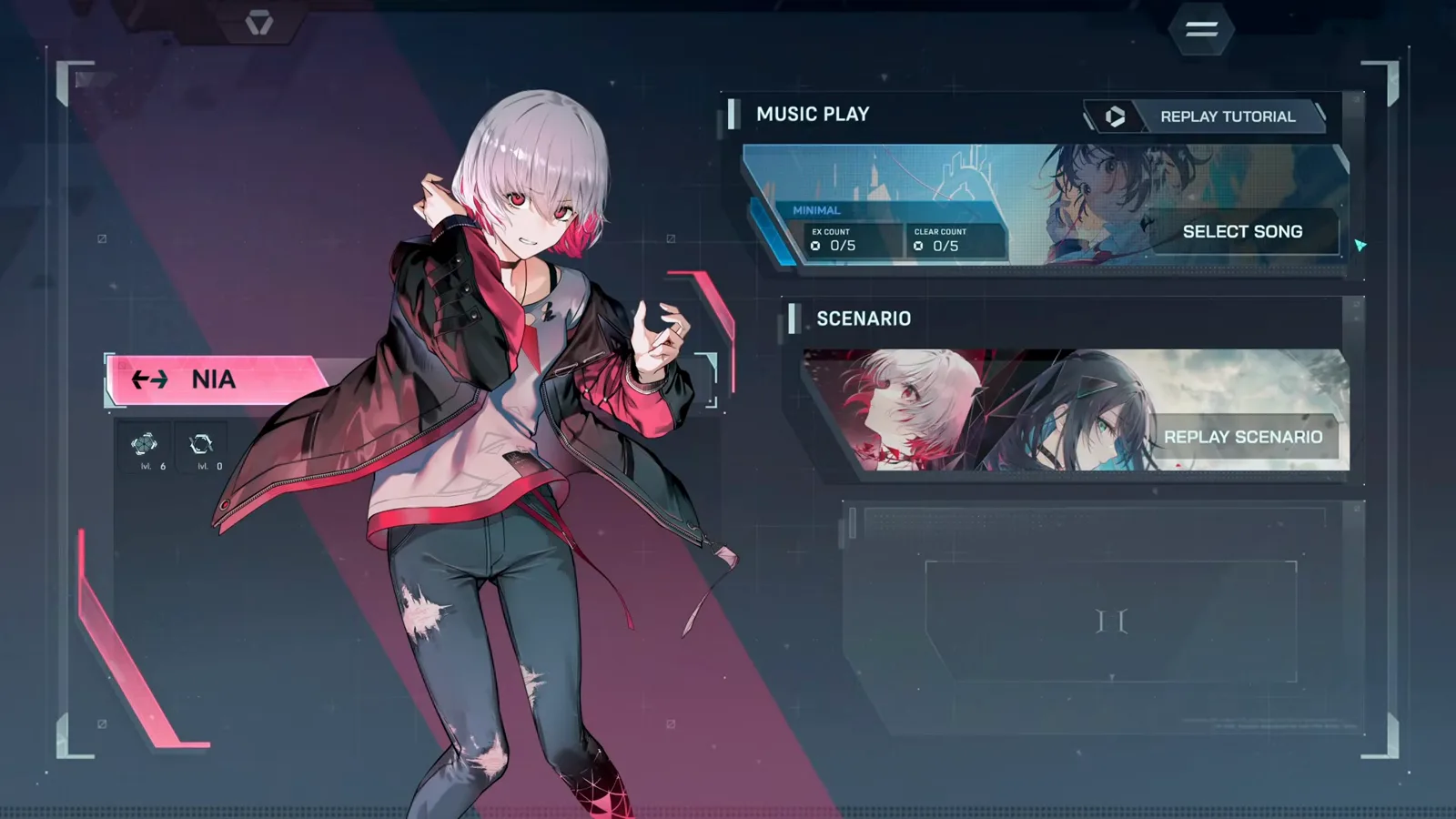
Nia's hub with the Music Play menu.Watch source clip - 14
Read the encounter HUD mid-run
During a dive the side panel shows your equipped cards, while PHASE counters, Encounter Score and stars track progress. Songs split into phases; surviving each one pushes the encounter forward.
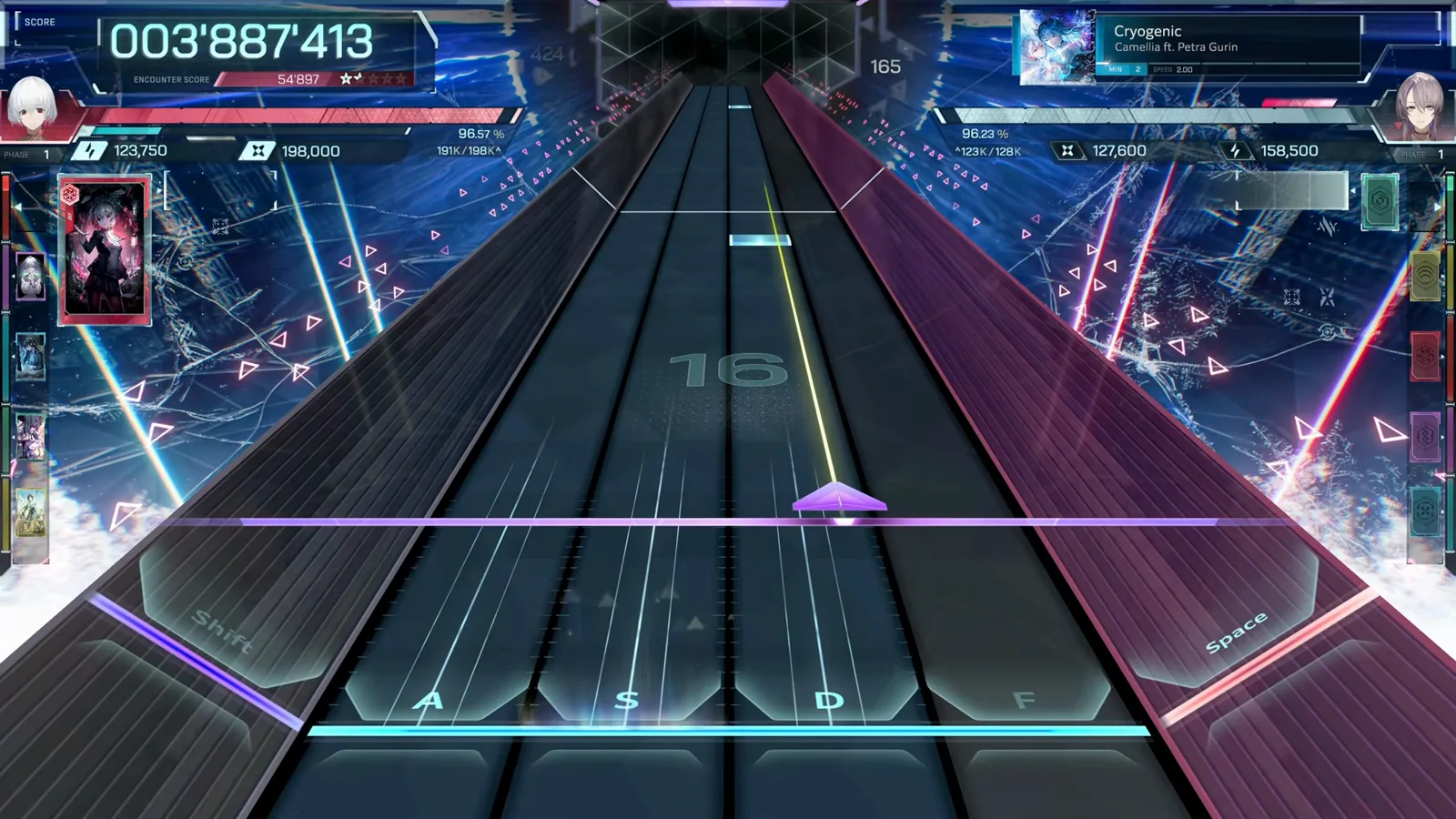
Cryogenic in phase one with the card stack visible.Watch source clip - 15
Finish the dive
Keep Miss HP at zero or above and the dive ends on a final phase burst. Encounter Score and the star tally freeze at the top of the screen just before the results card.
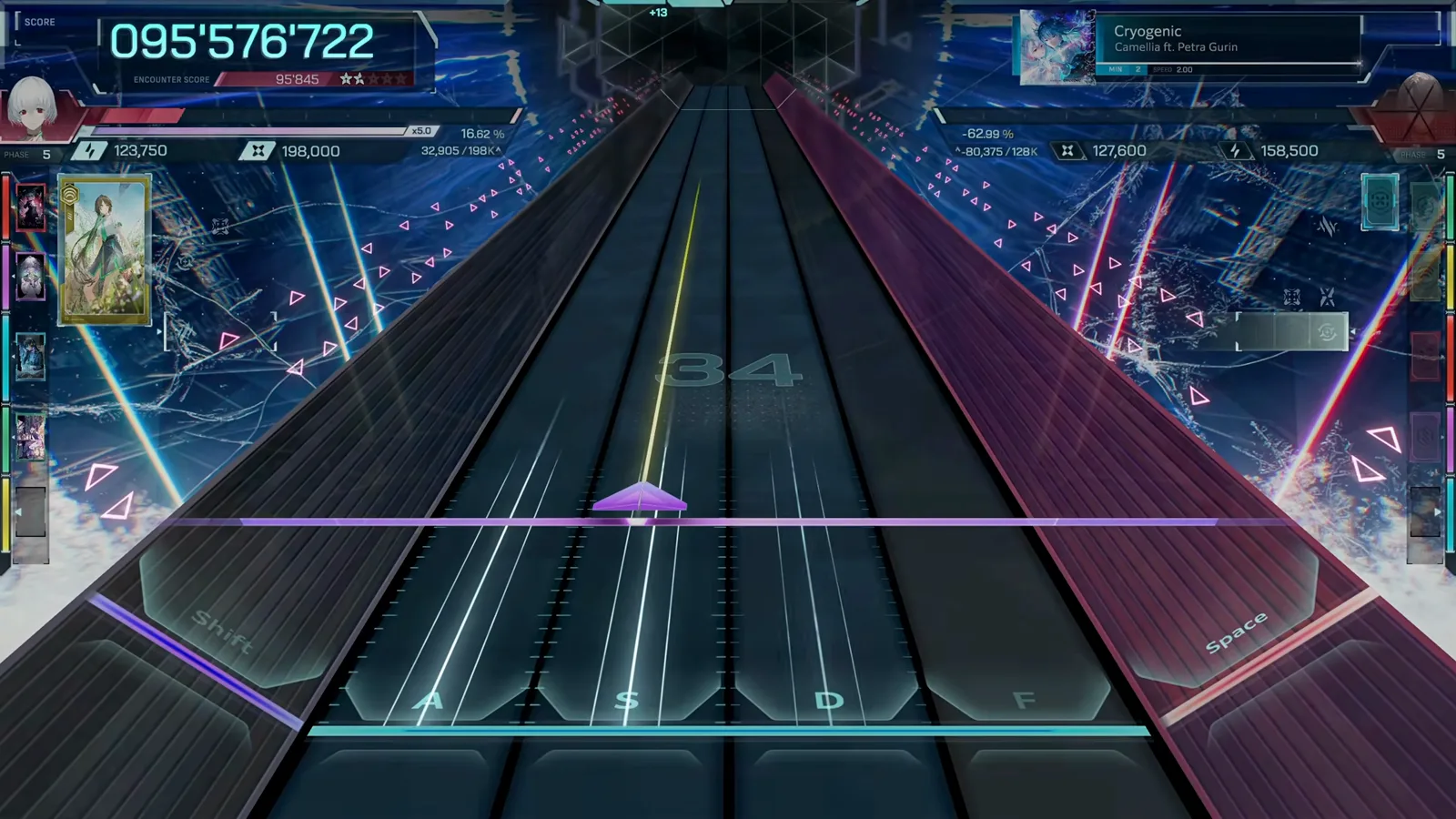
The last seconds of a Cryogenic dive.Watch source clip - 16
Read your results card
The results screen grades the run (AA here), breaks judgments down into EXACT / NEAR / BREAK counts, shows the song's artwork and offers CONTINUE back to the hub. Grade thresholds live in our Rhythm Reference.
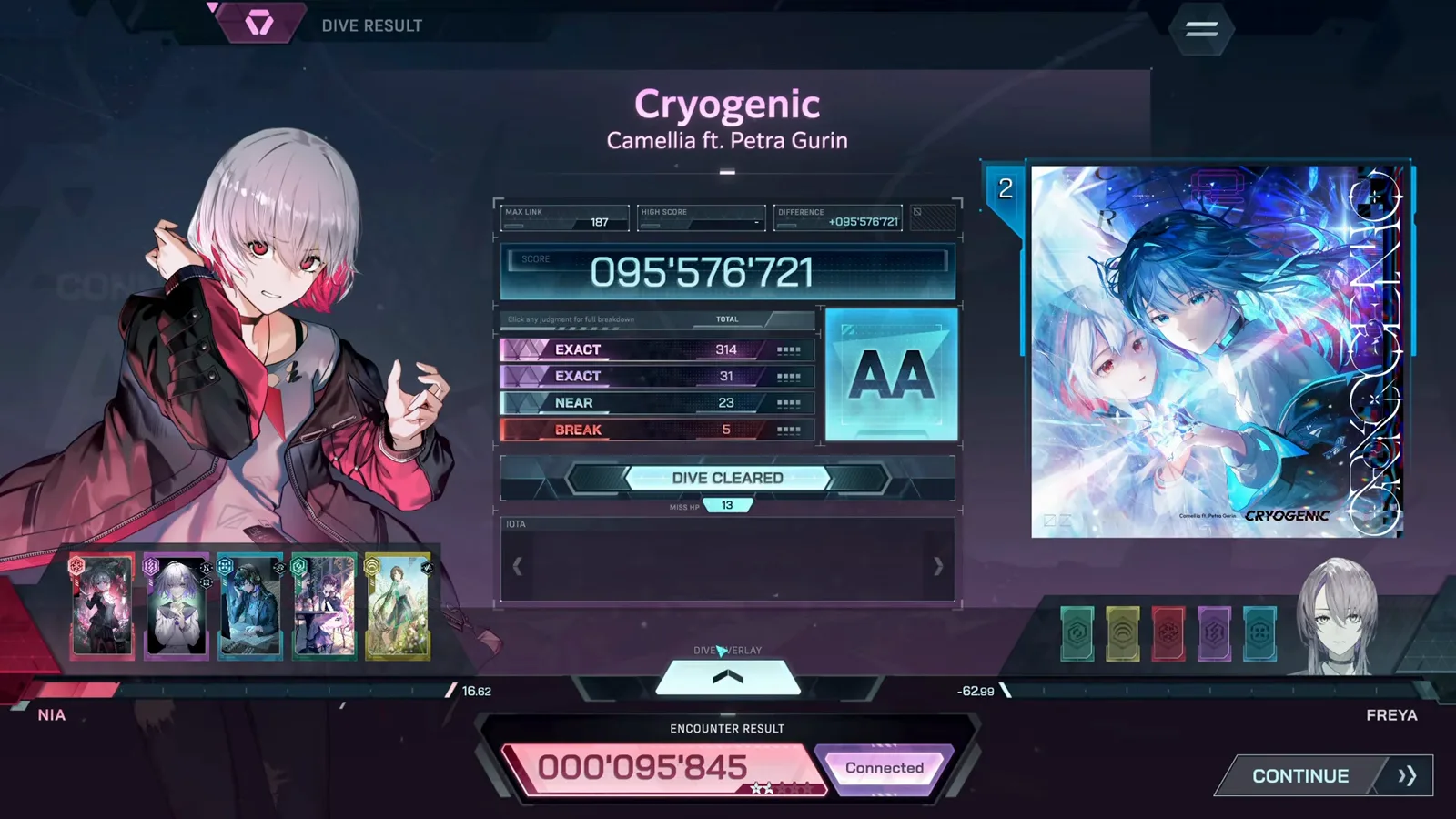
The dive results card with grade and breakdown.Watch source clip
FAQ
What songs are playable in the In Falsus demo?
Six songs were playable across the demo builds — Cryogenic, Ghost Ray, Hyaloüyne, Ordirehv, à la mode and Deep Into The Vibe — plus the tutorial track Albedo. The full game adds more; the Songs & Charts wiki page tracks the announced list.
How long does the demo take to finish?
A first full run — tutorial, story scenes and every playable song — takes roughly 30–45 minutes. Chasing EX grades on every chart takes much longer.
Does demo progress carry over to the full game?
No save carry-over has been confirmed between the demo and the 1.0 release. Treat the demo as practice: the settings muscle memory — track speed, audio offset, keybinds — is what actually transfers.
Related
Written for infalsustips.com from our own demo testing and community research. Fact-checked against: In Falsus Wiki (Miraheze) (CC BY-SA 4.0) · In Falsus Wiki (Fandom) (CC BY-SA)
Data reflects demo v0.3.1 · being re-verified on 1.0 · Unofficial fan site — In Falsus © lowiro